February 6, 2015

Cannot Open QuickBooks - Errors When Opening

Over the past couple of weeks, I have had more than a handful of clients call because there QuickBooks won’t open.  Either it will error out when you try to open it, or it will ask you to log in and then it will present you with an unrecoverable error.  The error is pretty cryptic, and does not give you any real hint as to what is causing the issue.


Before you spend a bunch of time on the phone with QuickBooks support to get this fixed, give these suggestions a try to see if you can get in.


Trouble Getting QuickBooks to Open


No-Company-openWith QuickBooks closed on your computer, hold the Ctrl key down while opening QuickBooks.   This will open QuickBooks with the no Company window open. By default, if you close QuickBooks by using the X in the upper right corner, the program will open the same data file next time you open it.  The CTRL allows you to bypass opening the company file and you should be presented with the Open Company File dialog box.


Trouble Logging Into Your Company File


Next, before you click on your company file to open it,  hold the ALT key, then click on the file and click Open.  If you have a password on your account (and you should!) release the ALT key to type in your password.  After you type that in, hold the ALT key again before clicking OK.


Similar to the earlier example, when you close QuickBooks, it remembers all of the screens and reports that you have open when you quit.  By holding down the ALT key, you are telling the program to open the user without launching all of those reports and windows. We have seen that sometimes if you leave a lot of reports open QuickBooks might have trouble recreating them when you try to log in and thus causes an error.


Don’t Save the Desktop View


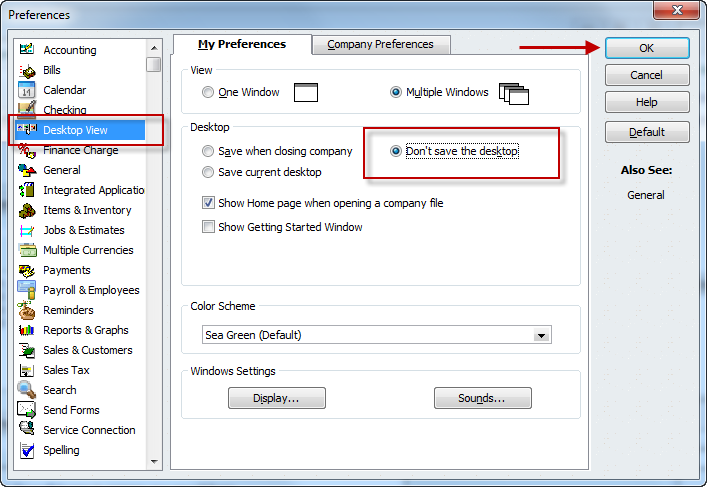
QuickBooks has a setting in the Preferences file that will allow you to help prevent this from happening again.  It is the Save Desktop View option.  By selecting Don’t Save the Desktop option, the reports and files will not be saved when you close you file.


To get to this setting, do the following steps:


  1. desktopviewClick Edit from the main menu

  2. Click Preferences

  3. Choose Desktop view

  4. Don’t save the Desktop

  5. Click OK


Have each user log in and do this.  


Hope this helps.


Cannot Open QuickBooks - Errors When Opening

December 31, 2014

Happy New Year!

http://www.dreamstime.com/-image24685299May this New Year brings you immense happiness in all you do, may the fireworks brings you the sound of Victory in your ear. Wishing you Happy New Year


Happy New Year!

December 25, 2014

Merry Christmas

http://www.dreamstime.com/-image17015831Merry Christmas from our  family to yours! Hope you and your family have a happy holiday season.


Merry Christmas

December 16, 2014

Happy Hanukkah

hanakkuhMay this season of beauty and light fill your heart and home with happiness. Happy Hanukkah!


Happy Hanukkah

August 7, 2014

QuickBooks for Attorneys Book on Sale

saleIn celebration of back to school time, we have our best selling book, Law Practice Accounting Using QuickBooks and Law Practice Accounting Using QuickBooks for MAC, on sale for $10.00 off the regular price. Order on or before August 31st to save and get a head start on getting you firm’s books in order before the crunch of the end of the year.  The book is written for both PC and MAC versions of QuickBooks


Click here to Order Today and Save!


If you are interested in learning about using the Online version of QuickBooks, please give us a call at (904) 28-4480 for more information. Enjoy the rest of the summer and remember to give us a call if you need help using QuickBooks in your Law Firm!


QuickBooks for Attorneys Book on Sale

QuickBooks Lists Not Sorted Alphabetically

In my consulting practice I have recently had quite a few Attorneys that use QuickBooks have a common problem when they were trying to display a list.  The problem is when they view a list (like the Chart of Accounts), the list is not sorted alphabetically, which makes finding a particular entry a bit of a hassle.

Here is a quick way to get those lists back in shape.

  1. Click on List from the Main Menu and choose Chart of Accounts.

  2. This will display your Chart of Accounts list.

  3. With the list open, click View from the Main Menu and Re-sort list.
Tada!  The list is resorted.   This will also work in the customers, vendors and items list.


QuickBooks Lists Not Sorted Alphabetically

May 28, 2013

QuickBooks Update Service

When you open QuickBooks you may encounter a message that says QuickBooks has an update.


Figure 1.1


figure1.1


Don’t just click Install Later.   It usually only takes a few minutes.   QuickBooks releases these updates for fixes or new features.


If you are working in a network environment you need to keep in mind that once one of you update you will all need to update.   2013 released the R6 update and this fixed a lot of issues they were having so I recommend updating it.


If you have an older product you may see a message that prompts you for a new release.   This is upgrading, so you don’t want to do this unless you want to buy the new product.


QuickBooks Update Service

You Can Use QuickBooks in Your Law Firm

QuickBooks is the number one small business accounting software and for good reason. It is easy to use and reasonably priced. QuickBooks can do the following things that attorneys generally need:


  • Client Information – Track Client contact information and case information.

  • Track Billable and Non Billable Time – QuickBooks has a great Time Tracking feature. An attorney can track their billable and non billable time for their clients. It also has a Timer program that comes separate and able to run without QuickBooks. This enables everyone in the office to track time and the bookkeeper and pull the time into QuickBooks.

  • Tracking Postage, Copies and Other Client Costs – QuickBooks can help you keep track of postage, copies and other client costs so that you can easily bill your clients.

  • Billing Rates and Price Levels – You can create custom price levels for your clients. It can also track Billing Rate levels that can be associated by the time keeper. (This is available in the Professional Services edition.)

  • Conflicts of Interest – In the 2009 versions and later of QuickBooks you have the ability to do advanced searches quickly and easily within your customer list.

  • Retainers – Yes you can track retainers in QuickBooks. Reports can easily be created and memorized so you will always know what money you are holding in retainers.

  • Trust Accounting – Easily track the money you are holding in trust and create reports to help you stay in compliance with Trust Accounting Laws.


QuickBooks also has the ability to:


  • Write checks

  • Link to online Bank Accounts

  • Accounts Receivable

  • Accounts Payable

  • Payroll

  • 1099’s


You Can Use QuickBooks in Your Law Firm

April 23, 2013

Schedule Backup in QuickBooks

This week alone I have had two people call me asking me how to restore a QuickBooks backup file.   One call was the result of a computer crash, the other has no idea what happened, it just stopped working.   Unfortunately for both of these callers,  the last backup they had was in early March when they made one for their CPA.  So all of the work that they had done between now and March was gone.  Terrifying thought, isn’t it?


This does not need to happen to anyone. There is a  built  feature that will allow you to schedule a backup in QuickBooks to a location you choose.  It runs automatically, and this way it is done for you without you having to remember to run it.


While best practices dictate that you should be backing up to a remote drive or an external device, like a thumb drive or external hard drive, we have found that just having a backup on the computer can be a lifesaver when you get a corrupted datafile.  And if you are running an online backup program like Crash Plan or Carbonite or even Dropbox, you will get your nightly backup file backed up to the cloud and you will be double safe, having a local and off-site backup.  One thing that we have found through many years is that there is no such thing as backing up too much.


Schedule Backup In QuickBooks Automatically


Here are the steps for setting up an automatic backup job.


Click on File from the Main Menu and choose Create a Backup.


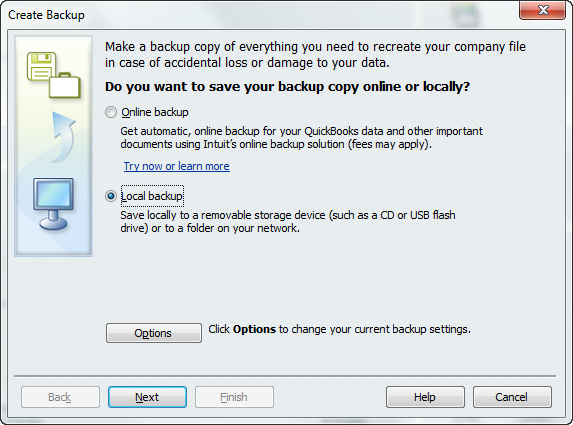
On the frist window (Figure 1.1) choose Local backup and click Next.


Schedule Backup in QuickBooks Figure 1.1

Figure 1.1


Choose the location.   I am choosing my Dropbox folder.   This way if my hard drive crashes,  I have a backup in a remote location that I can get to from anywhere.  On this screen (Figure 1.2)  you can also limit the number of backups to keep in the folder, so you don’t have to worry about disk space.


Change any additional settings, then click Next.


Automatic backups in QuickBooks Figure 1.2

Figure 1.2


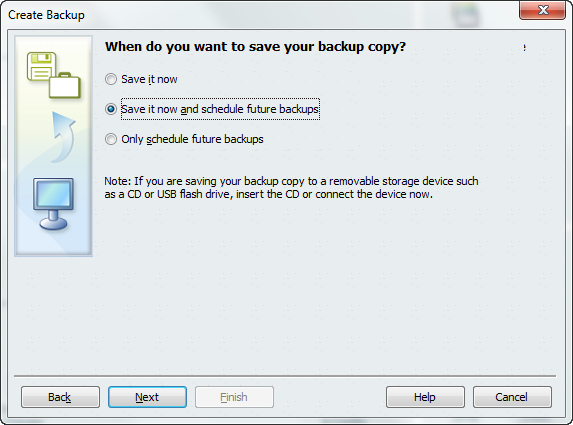
On this screen (Figure 1.3) you are given several options for running your backup. Choose the Second option, Save it now and schedule future backups so that you can configure your automatic backup options.


Click Next when you are done.


Automatic backups in QuickBooks Figure 1.3

Figure 1.3


This next screen gives you the options for your automatic backups.  You have several options that you can set, including days and time to backup. I have mine backing up daily.   I am keeping 8 days of backups and     I set it to do it in the early morning and every workday.  Remember that you computer has to be on in order for the backup to run, so if you turn your computer off each night, make sure that you select a time to run when the computer will be powered on.


Automatic backups in QuickBooks Figure 1.4

Figure 1.4


You will need to store your password, so that the program will have the permissions it needs to run automatically. Click on Store Password, enter your password and then click Finish.


TaDa!  Now you have a scheduled backup of your Quickbooks data file.   Now, you have one last step to make sure that you backup is running.  Tomorrow, check you backup folder and make sure that your new backup file is there.  I would put a reminder in your calendar for the next few days to make sure that it did run successfully, then set a reminder to check at least every 2 weeks.  Nothing is worse that thinking that you are backing up than to find out when you need it that there was a problem, and it was not running.


I also advise my clients to restore a backup a couple of times a year to make sure that all is well with the backups.  You can never bee too sure!


If you have any other tips for backing up, tell us below.  We would love to hear from you.


Schedule Backup in QuickBooks

March 28, 2013

QuickBooks 2013 R6 Now Available

We have just learned that Intuit has released a new update for QuickBooks 2013 – R6.  We recommend all users install this update, especially if you are one of the users that suffered from the Unexpected QuickBooks crash issue that we mentioned a few days ago.


According to Intuit this updates makes that following changes -


  • Resolved QBW32.EXE Fatal Application Exit error (Unrecoverable Error 02700 80318)

  • Improved performance.

  • Added the ability to change the Company File Color Scheme

  • Added Windows 8 support for the QuickBooks Attach Documents scan manager.

  • Added Monthly payroll item limits.


Your QuickBooks should alert you when this update is available  but if you want to check and install it manually you can follow the instructions below.


I just ran the update and it took a few minutes on my machine to finish and I had to restart my computer.   When I opened my company file the color scheme was changed and it updated my datafile.   If you share your datafile you will all need to update to use the company file.   So far so good.  No crashes.


Manual Update


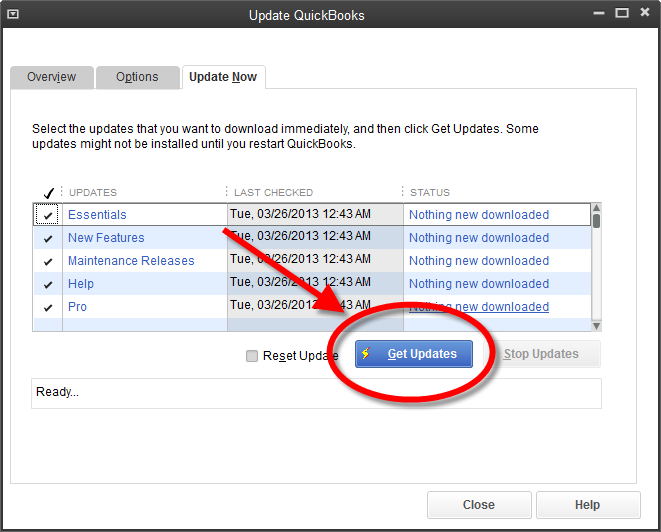
To run a manual update, click on Help, then Update QuickBooks.  On the fist page of the Update QuickBooks window click on the big blue Update Now button.  That will bring up the Update Now tab and you can then click on the blue Get Updates button.


quickbooks-updates

Click to Enlarge


Allow a few minutes for all of the updates to download, then when it is finished, close QuickBooks and re-open.  QuickBooks will install your new updates and you should be good to go.


QuickBooks 2013 R6 Now Available

March 27, 2013

QuickBooks 2013 Closing Unexpectedly

Over the last few days i have had a number for clients contact me because QuickBooks 2013 for windows had shut down right in the middle of doing something.  People seem to see different messages and errors, but they are all doing the same thing.  There seem to be a number of people that have experienced a similar problem – QuickBooks just shuts down unexpectedly.


I have done some digging and this is what I have found.  First it seems to be isolated to QuickBooks 2013 running on Windows 7 PC’s.  Not sure what the correlation is, but it looks like those users are the ones most effected.   There are a couple of Knowledge Base articles that Intuit has posted that can be related tot he issues -


  • SLN65647 - Unrecoverable error: 15346 90861 when clicking on Review 1099 vendors in 2013


  • SLN65483 - Error: QBW32.EXE – Aborting Application: QuickBooks is now terminating when working in 2013


I also read that Intuit was aware of an issue and that they had released an update to correct the issues – Release 5 (R5).


Service Releases & Updates


The first step I would recommend to help with this issue (or any issue) is to make sure that your QuickBooks is up to date with all the latest software updates.  If you have ever opened QuickBooks and were greeted with the message that there are “updates available, do you want to install them” I would advise that you install them.  It only takes a few minutes, but it is how Intuit keeps the program up to date and running smoothly.  As issue are found, they are addressed by Intuit and put together in a service release.


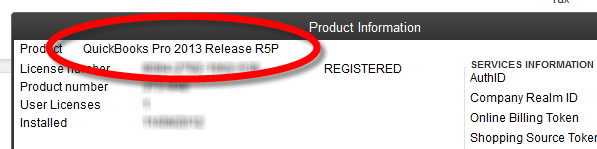
You can easily check to see what version you are using by opening QuickBooks the press CTRL + 1  (that is hold down the CTRL key then press the number 1).  This will bring up the product information window. Listed right at the very top is the version number.


product-information-screen


If you are not on R5, then you will need to update your QuickBooks.  To do this, click on Help, then Update QuickBooks.  On the fist page of the Update QuickBooks window click on the big blue Update Now button.  That will bring up the Update Now tab and you can then click on the blue Get Updates button.


quickbooks-updates

Click to Enlarge


Allow a few minutes for all of the updates to download, then when it is finished, close QuickBooks and re-open.  QuickBooks will install your new updates and you should be good to go.


Still Having Issues


We are seeing that those that are running R5 can still have issues even with the install, so be aware. If you are still having issues, continue to check for updates and you can contact Intuit directly.  We will continue to check on this issue and let you know if we hear anything, as well as when new updates are available.


QuickBooks 2013 Closing Unexpectedly

March 26, 2013

Memorizing Reports in QuickBooks

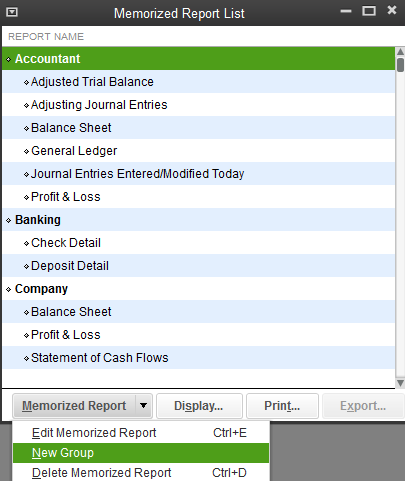
QuickBooks allows you to memorize reports that you have customized so you can quickly print them again.   However you want to organize your memorized reports to make it easier to find.   The first step is creating a Memorized Report Group.   To do this Click on Reports from the Main menu and choose Memorized Report List.  When the window comes up click the Memorized Report button at the bottom and choose New Group.


1.1MemorizeList

Figure 1.1 Click to Enlarge


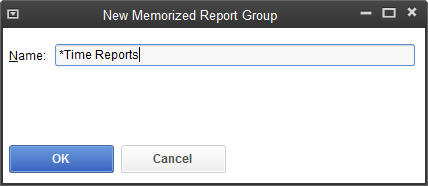
We are going to create a group called *Time Reports.   Now the reason I put a * in front of Time is so it shows up at the top of the list.   Click OK when done giving your group a title.


Figure 1.2 Click to Enlarge

Figure 1.2 Click to Enlarge


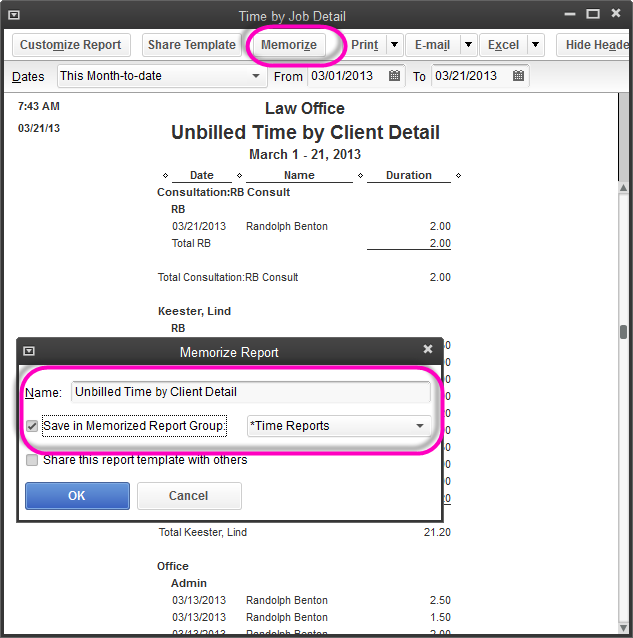
I have a report I customized to show unbilled time by client detail.   I want to save this report in my memorized report group.   Click the Memorize button at the top of the report and select Save in Memorized Report Group.


1.3Mem

Figure 1.3 Click to Enlarge


When you save all the reports in the group it makes it easier when it is time to print these reports.   Simply click on the Memorized Report List and choose the group.  At the bottom of the Report List you will see a button to Display or Print.


Figure 1.4 Click to Enlarge

Figure 1.4 Click to Enlarge


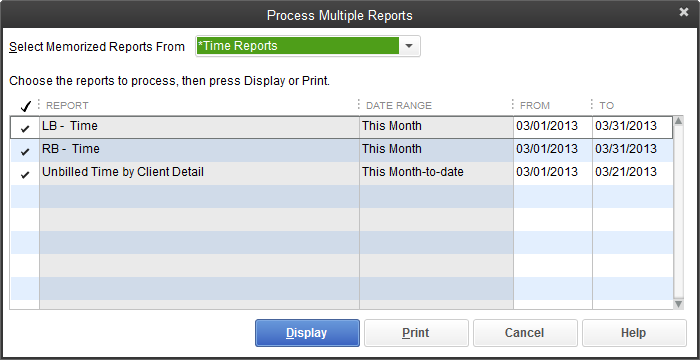
When we click Display it will bring the list up to select all or just some of them.


Figure 1.5 Click to Enlarge

Figure 1.5 Click to Enlarge


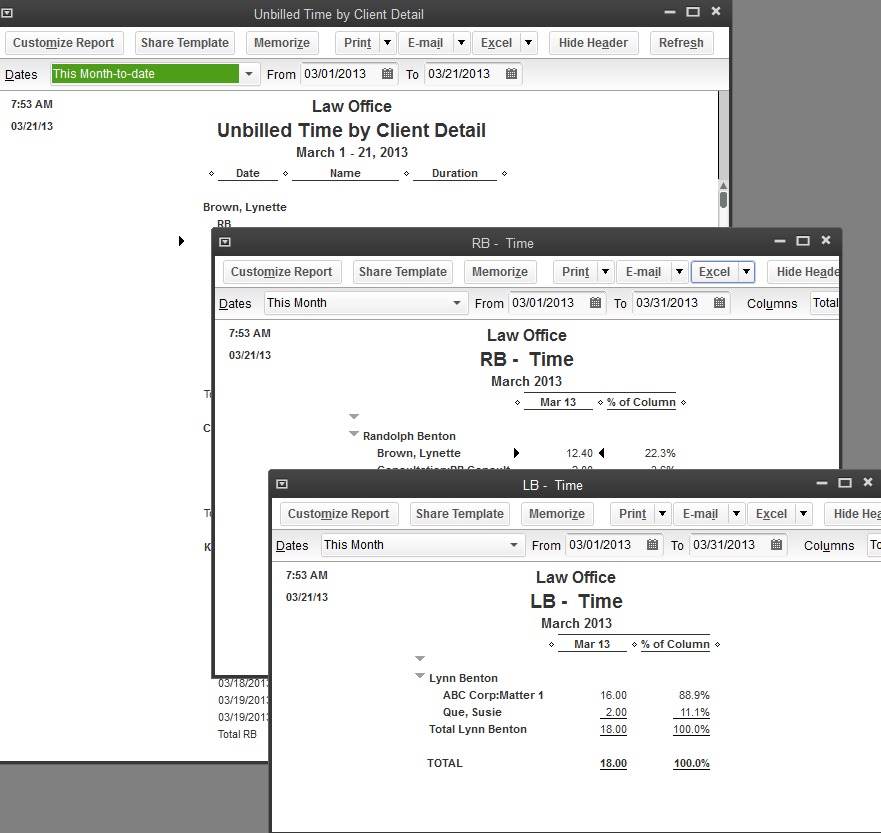
TaDa!  Instant Reports.


Figure 1.6 Click to Enlarge

Figure 1.6 Click to Enlarge


Memorizing Reports in QuickBooks

October 31, 2012

Trust Accounting using QuickBooks

Recently I have noticed alot of information on the web talking about trust accounting using QuickBooks. I also notice that people are suggesting making subaccounts under the bank account for each client. This is a method I do not recommend doing. It limits you on having to make one transaction for each client. If you only have a few clients and a few clients in your trust account this may work for you but it will become very cumbersome when your practice starts to grow.

Key things to remember when setting up your trust account.

You need to be able to provide the reports on a monthly basis to show activity for each client, sometimes called a client ledger.

You need to be able to have a report that shows all the activity in the trust account and clearly identified for each client.

You need to reconcile your trust account monthly with your bank statement.

If you print a Balance sheet report in QuickBooks and the Trust account does not equal the Trust Liability you setup then something is wrong. All money going into and out of trust should be coded to Trust Liability. I recommend using subaccounts under the trust liability but you can just use the customer name.

You want to make your system easy enough that at any given time you can identify who has what in trust. This is a very important part of your business.

You never want to be in a position that you bounce a check in the trust account. If you mess this up it can cause the bar association to step in and look at what you are doing.

If you need help or would like me to review your current Trust Accounting procedures I would be happy to help. You may call me at 904-284-4480 or email me at Lynette@attorneystechnology.com

October 30, 2012

Tracking Time in QuickBooks


Attorneys can track time in QuickBooks and bill their clients.  You do not need to buy any other software to make this work.  It is in QuickBooks.  


QuickBooks gives you two options for entering time (you can switch back and forth between either methods at any time).  In either case, be sure to enter as complete a record as possible if you want your time to accurately and completely transfer to invoices and statements or show on reports. 


Single activity time entries are convenient to use if you will be continuously running QuickBooks, and entering each activity as you do it, rather than entering all your time at the end of the week from a paper timesheet. One advantage is you can use the timer to time your activity. 
1.      Click on Enter Time from the Home Page.
2.      Click on Time/Enter Single Activity.
3.      Choose the Date in the Date field.
4.      Choose the Employee in the Name field. 
5.      Choose the Client, and job if you are using jobs, in the Customer: Job field.
6.      Choose the Service Item. For example consulting, court appearance or telephone conference.
7.      Enter the time spent.
8.      Make sure there is a √ in the Billable box if you are going to bill the client.
9.      Enter a description in the notes area.  This will be able to be pulled into the invoice or statement.
10.    Click on Save & Close if you are finished entering time or Save & New if you want to enter more time.


The weekly timesheet in QuickBooks is useful when you enter time at the end of a week or a certain period, working from a paper time record.
1.      Click on Enter Time on the Home Page.
2.      Click on Use Weekly Timesheet.
3.      You may want to change the date range for the time sheet.  To do this click on the small calendar icon to the right of the date.  Select a new date.  The new date range will appear.
4.      Choose the Employee in the Name field.
5.      Choose the Customer in the Customer: Job field.
6.      Choose the Service Item.
7.      Enter a description in the notes area.
8.      Click on the date column and enter the time spent.
9.      Mark it billable if you want it to show up on the client’s invoice or statement.
10.    Continue until all time is entered then click Save & Close. 


QuickBooks service items are used on the time sheets.  You may want to think about how you want to see your income and set up your items accordingly.   If you need help I am available to help you get started with tracking time in QuickBooks.   You may call my office at 904-284-4480 or visit www.attorneystechnology.com for more information. 
 

February 28, 2012

Converting Time entries from Time Slips or Tabs to QuickBooks

Are you currently using another program to track and bill your time?  Would you like that time to be brought into QuickBooks so you can have the history and start using QuickBooks to manage your time and billing?   If so I can help.  If your current program has the ability to print the time records to a csv or text file, this can be transferred in.    If you would like more information about this service please contact me at (904) 284 -4480.

February 10, 2012

Law Firm Sample Statement from QuickBooks

Attorneys can use QuickBooks to track time and bill clients.   This week alone I have had four people call and ask me what program should they get to work with QuickBooks so they can do billing.   I told all of them they don't need another program you can do it in QuickBooks.  

QuickBooks has a built in feature to track time.   You can customize it so you can track time by employee, types of work or by rate.   The trick is setting it up correctly.  

One complaint that I hear is that attorneys don't like the way QuickBooks Invoices or Statements look.  I  have created a sample statement from QuickBooks that only took a few minutes to create that I think looks professional for use in a Law firm. 

If you would like to learn more about how you can use QuickBooks in your law practice you are welcome to contact me.   http://www.attorneystechnology.com/

Thank you,
Lynette Benton


September 17, 2011

What is Undeposited Funds used for in QuickBooks

One of the most common question I get is “What is undeposited Funds?” When you receive a payment from a client it goes into an account called undeposited funds. Think of this as your bank bag. You may receive payments from clients throughout the week. You stick them in your bank bag.

You do the same thing in QuickBooks. When you are ready to go to the bank you click on Record Deposits from the Home Page. A window will pop up for you to select the payments you are depositing into the bank.

Now you select the bank account you are depositing the money into.

Undeposited Funds is just a holding account to place all the checks or cash you have received so you can group them together to make a deposit into your bank account.

Hope this helps.

September 5, 2011

Entering Credit Card Charges in QuickBooks

Setting Up for Credit Card Transactions
If you have a credit card that you use only for the business then you will want to set it up as a credit card account.

1. Click on Chart of Accounts from the Home Page.
2. Click on New from the Account button.
3. Choose Credit Card as the Type of account.
4. In the Name field type in the name of the credit card.


You can enter the charges as you make them or wait until you get your statement and enter the charges at that time.

1. Click on Banking from the Main Menu.
2. Click on Enter Credit Card Charges.
3. Choose the credit card in the Credit Card field.
4. If you want to do it using the statement and put them all on one charge don’t fill out the Purchased From and use the statement date as the date.
5. Enter a description of the item purchased in the Memo column.
6. Be sure to remember to choose a class in the Class column if you are using classes in QuickBooks.


Paying a Credit Card

To pay a credit card you just write a check. Enter the name of the credit card company in the Pay to the order of field, enter the date and the amount you are paying. In the Account column choose the credit card account you setup.


July 17, 2011

Attorneys Can Use QuickBooks in Law Practice

I have heard many times that lawyers have been told and think that they can not use QuickBooks in their office to handle their bookkeeping needs. I disagree with this. QuickBooks is an inexpensive accounting software package that is designed to be easy to use by non-accountants. Even though attorneys have complex accounting needs, I have found through years of experience, that QuickBooks can accomplish the tasks you need to run your practice.

QuickBooks has the ability to do the following for attorneys:

Track time to bill clients
Track costs to bill clients
Bill clients for time and cost
Track income and expenses
Maintain a trust account

It is easy to accomplish if you have QuickBooks setup right to begin with. The biggest problem I have seen is neglecting the accounting aspect of your practice. Lets face it. You could be using any piece of software to handle your time and expenses but if you don't have an overall knowledge of how profitable your business is, you are just guessing.

Being able at any time to see how your practice is doing gives you a great piece of mind and a chance to fix things before it is to late. Most of the high price accounting packages for law firms are so complicated that you have to hire people that already know how to use them and then you are depending on them to tell you how it is going. With QuickBooks, you, the attorney, can easily learn how to get the information you want when you want it and you are not held hostage by a bookkeeper that may be the only one who knows how to run your software.

How long does it take to get setup and running? This is my most asked question. Here is a breakdown on the average time investment I think you will need to get up and running.

  • 15 - 30 minutes phone call with you -Let me setup the file - I do this after I talk to you to find out a little about your practice and billing needs.
  • 1 hour gathering information - This really depends on if you are starting out with a new practice or converting from another program. Things I would need to get your file setup would be client begin balances, client names and address information (I can show you how to add but if you have an existing program I can import this information for you) Trust account information, and billing rates.
  • 2 - 1 hour online consulting appointments - Using remote connection software, I will put the file on your computer and show you the basic functions of QuickBooks like how to setup clients and matters, how to enter your time, and how to bill for it, how to write checks for client costs and regular operating expenses and how to receive payments from clients.
  • 1 hour online consulting for Trust Accounting. I will teach you how to handle your trust transactions and get the reports you need to be in compliance with your state bar association rules on trust accounts.
  • 1 hour online consulting - This is usually after the first month. I show you how to reconcile and how to make sure your information is correct.

The total investment in time is usually 4 - 6 hours and you will know how to use your accounting software to get the information that you need to make sure that your practice is healthy, and in compliance. I have been teaching attorneys how to do this for over 15 years and it works. You are welcome to contact me if you have any questions.

February 26, 2011

Recording Cash Transactions in QuickBooks

There are some occasions in which you purchase items with cash or on your personal account. You want to record them so you can write off the expense. These transactions can be entered into QuickBooks with a journal entry or you can setup a bank account called petty cash.

Journal entry method:
1. Click on Company from the Main Menu and click on Make General Journal Entry.
2. Choose the account the expense was for. In the Debit column type in the amount of the purchase. Enter a memo regarding the purchase. If you are using classes in QuickBooks don't forget to enter a class.
3. You will credit the Owners Draw or Draw account the total of your debits.
In the Chart of Accounts you will want to have an account for money you put in and take out of the company. This could be called Owners Draw or Draw. They type of account it would be is an equity account.
Petty Cash Method
Another way to handle cash transactions is to setup a petty cash bank account. For example, let’s say you have $100.00 in petty cash. When you need to buy something you take it out of petty cash and put in a receipt. First setup a bank account called Petty Cash.

1. Click on Chart of Accounts from the Home Page.
2. Click on Add new from the Account button.3. The type will be Bank Account.4. The name will be Petty Cash.

When you write a check from your regular checking account for petty cash you will choose the Petty Cash account as the account. This will put money into the petty cash register.

Now that you have a petty cash account you can enter the receipts you have that you paid for with cash or through your own account. The main difference is that you don’t have to put a check number.